
Our Geo-Grid Tracker provides a view into local ranking on Google Maps for a given term and geolocation. It allows you to view a visual grid of your rank in several nearby geolocations, so that you can see how you rank for potential customers who search a term relevant to your business in slightly different areas.
Setting up a Geo-Grid
The first step is to set up a geo-grid to start tracking is to navigate to the Geo-Grid Tracker, which is under the Local Directories tab.
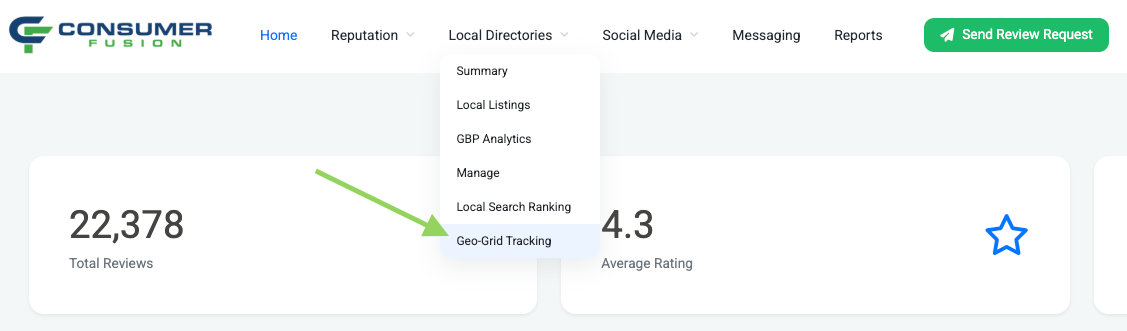
This will bring you to the Geo-Grid Tracking page, where you can set up your keyword tracking to view where your business ranks on the grid!
Note: Geo-Grid Tracking must be enabled for your account to see this page. If you do not see it as an option, reach out to our team for assistance.
To create a new geo-grid, you’ll want to navigate to the Manage Geo-Grid Settings:

You’ll be brought to the Geo-Grid Settings page, where you can see the history of your past geo-grid searches. To create a new Geo-Grid, you’ll want to click the Add New Geo-Grid button:

Here, you’ll be able to specify options and settings to give you the results relevant to your Geo-Grid Tracker:
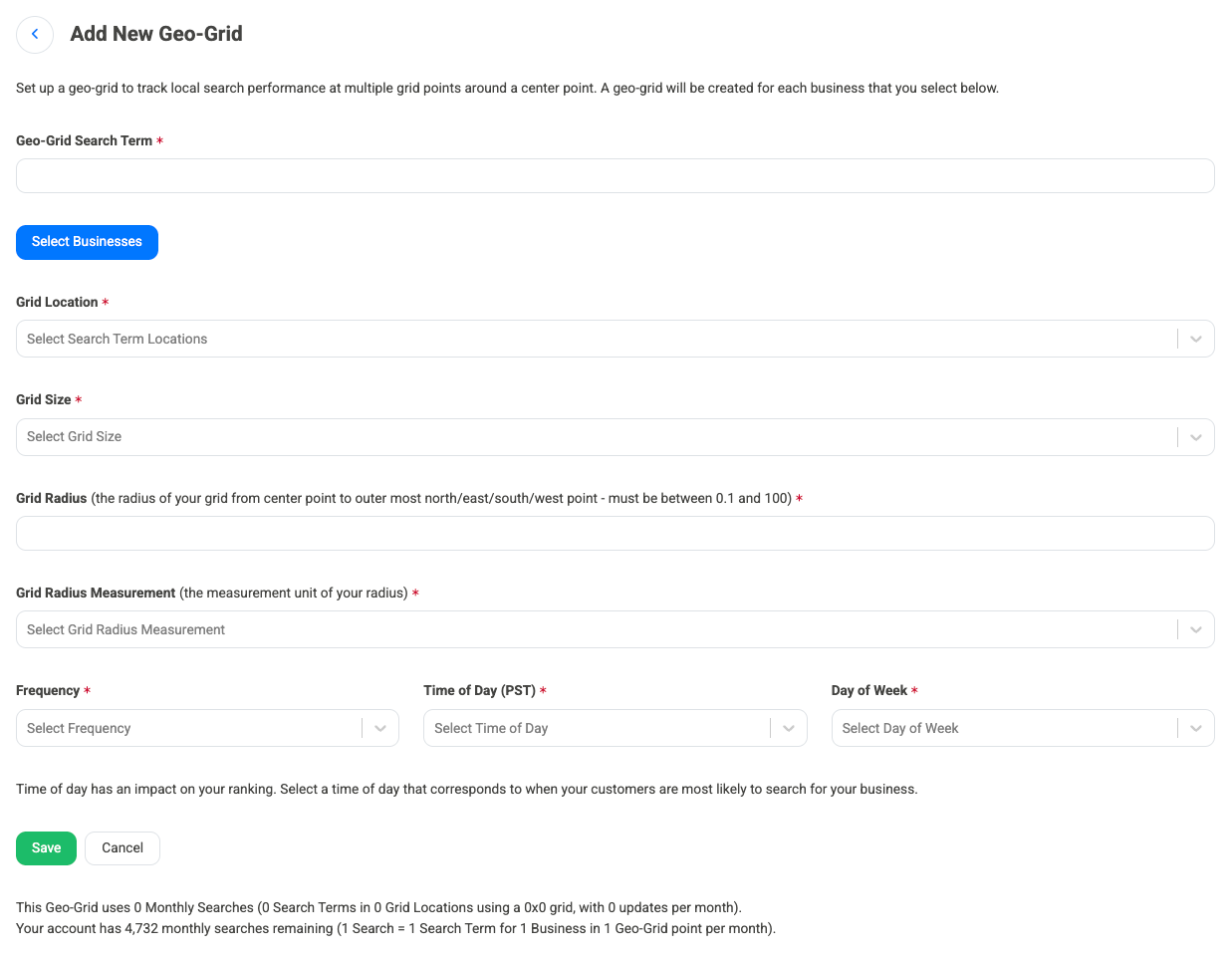
Geo-Grid Search Term: Enter a search term relevant to your business that you want to track on your Geo-Grid Tracker.
Grid Location: You can use the business address, which will populate the grid in the area surrounding your business address listed on Consumer Fusion. If you want to search a custom location, select Custom Location, which will allow you to specify the location that you want your Geo-Grid Tracker to search.
Grid Size: This option specifies the size of your grid, with 3x3 being the smallest, and 15x15 being the largest.
Grid Radius: This allows you to specify the radius of your grid from the center point of your entered Grid Location. This value must be between 0.1 and 100, measured in either miles or kilometers.
Grid Radius Measurement: This option allows you to specify how to measure your Grid Radius setting, in either miles or kilometers.
Frequency: This option allows you to select the frequency of your Geo-Grid Tracker searches.
Time of Day (PST): Check the time of day that your Geo-Grid Tracker searches. It is important to note that the time of day has an impact on your ranking. You will want to select a time of day that corresponds to when your customers are most likely to search for your business. This time is also tracked in Pacific Standard Time (PST), so please make note of the time difference from PST if you are in another time zone.
Day of Week: This option allows you to select the day of week your Geo-Grid Tracker searches.
You can now click Save to create your geo-grid and see how your business ranks under the keyword in the areas surrounding your geolocation.
Tracking Geo-Grid Performance
After you geo-grids begin tracking, you can see their performance on the main Geo-Grid Tracking page.
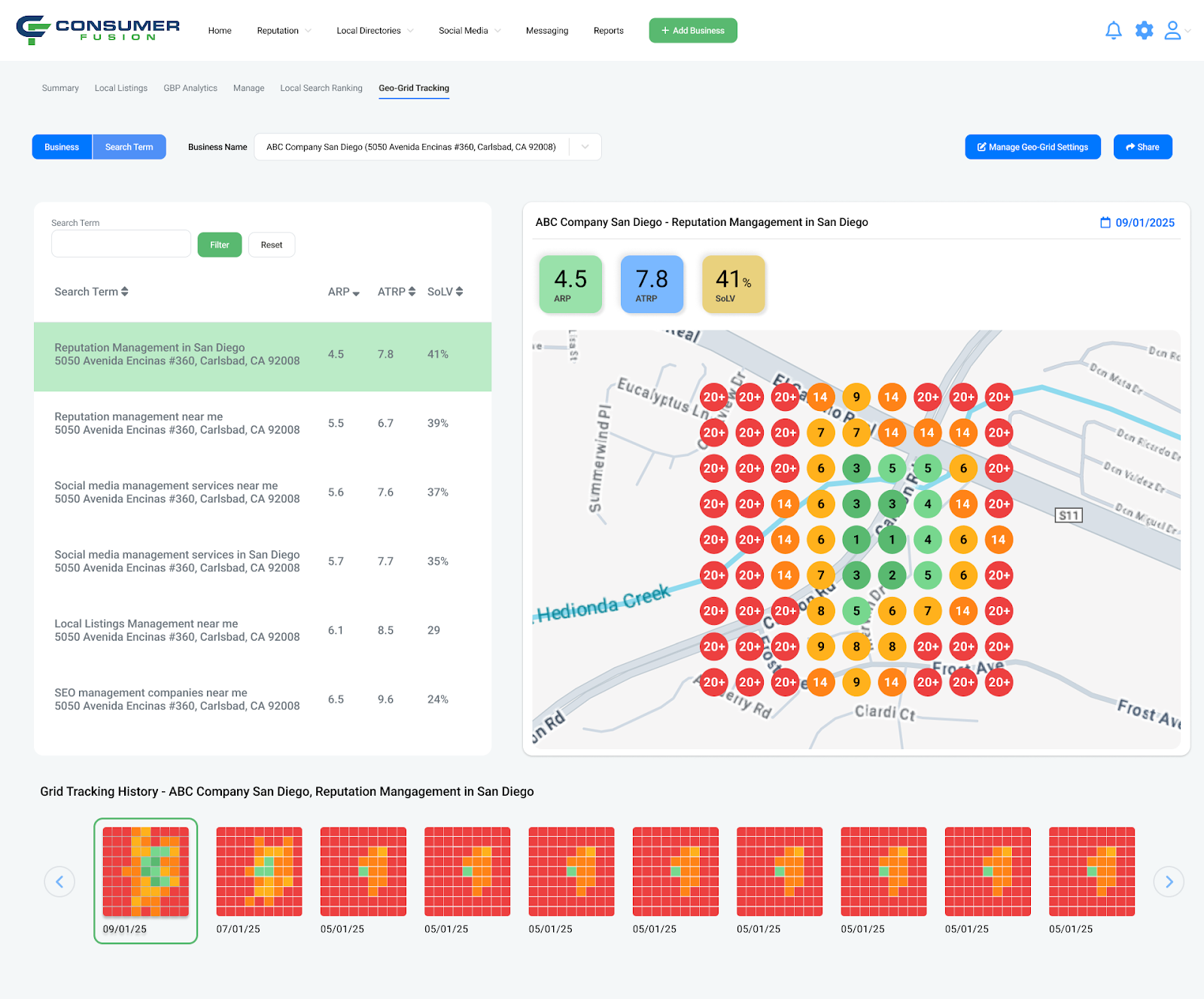
The center of your grid is the immediate location of your selected location, whether it be your business address, or a custom location.
The numbers are corresponding to the rank of your business on Google searches in that particular geolocation, with any number above 20 meaning that you are not ranked on the first page of the specified keyword in that geolocation.
The values above your geo-grid are:
ARP - Average Rank Position: This is the average position your business ranks in search results across all points on the grid where it is in the top 20 results.
ATRP - Average Total-Rank Position: This is the average of all rankings across all points on the grid, regardless of whether your business ranks in the top 20 results or not.
SoLV - Share of Local Voice: This is a percentage showing how often the business appears in the top 3 map results across all grid points.
Below your geo-grid is the Grid Tracking History for your geo-grid. It shows previous geo-grids based on the frequency chosen in your settings, which will allow you to see how your reputation has changed over the weeks/months that your geo-grid has been tracking.